Streaming from Yongcast but no picture on YouTube?
Check three separate things: whether Yongcast is actually streaming, whether YouTube has a preview, and whether the viewer page is live. Work through these steps instead of repeatedly creating streams or changing keys without a clear reason.
1. Is livestreaming enabled on your channel?
In YouTube Studio, choose Create → Go live. If livestreaming is not enabled or is still pending, complete channel verification and request access. First-time activation can take up to 24 hours. Resolve any channel restrictions shown by YouTube. Yongcast cannot bypass access restrictions or bans.
2. Are your videos ready, and is the stream running?
- Open Video library. Queued means waiting, Processing xx% means conversion is still underway, and Failed means you need to follow the error message. Check that your videos are ready to play.
- Check Playlists. The selected playlist must contain the intended videos in the correct order and cannot be empty.
- Check the actual status in Livestreams. If it is connecting or reconnecting, wait or read the message. A stopped or failed stream is not continuously sending video. For scheduled streams, check the scheduled time too.
- If all streaming slots are in use, try again later. For any other error, follow the message shown.
Videos are not backed up. Keep your originals. Each file can be at most 20 GB, subject to your account quota. The trial includes 5 GB total storage and seven days or 24 total streaming hours, whichever comes first. Use signup and pricing for new accounts and plans.
3. Are the event and stream key correct?
- A channel can have multiple live or scheduled events. Open the exact event you want viewers to see, rather than checking another tab's preview.
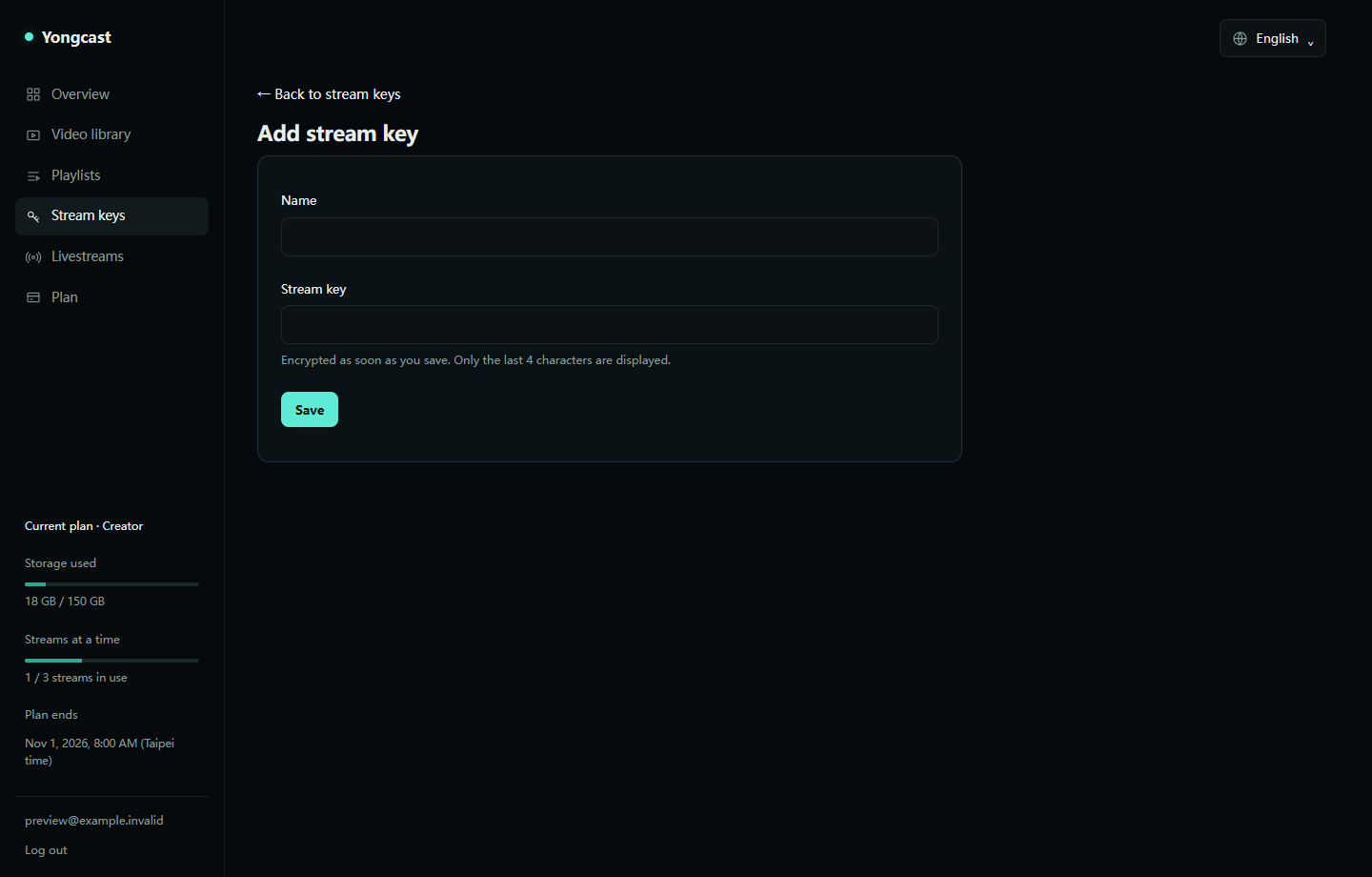
- Check the key name selected in Yongcast and the corresponding channel and event. Copy Stream key, not a viewer link or server URL.
- If you reset the key on YouTube, the old one becomes invalid. Update the saved key in Yongcast and restart as instructed.
- See the stream key guide. Its illustrations show no real full keys.
4. Does YouTube have a preview, and do you need to select Go live?
- No preview: Check that Yongcast is not waiting, stopped or in an error state, then check the event and key. Read YouTube's incoming signal or stream health messages and address invalid keys or network errors as indicated.
- Preview works but the viewer page has no picture: Check public, unlisted or private visibility and that you opened the correct event URL. Scheduled events usually require selecting Go live in YouTube after a preview appears. If automatic start is enabled, follow the event settings.
- Picture works but there is no audio: Check that the original video has audio and the player is not muted, then read YouTube's audio messages. An audio problem does not necessarily mean the entire stream is disconnected.
5. Did you just edit the playlist that is live?
Saving a live playlist restarts every stream that uses it from the first video. Streams usually resume within 30 seconds. After the status recovers, check the same event's preview and viewer page. If YouTube ended the event automatically or still requires Go live, follow its current prompts. Yongcast cannot guarantee that YouTube will keep an event open after a disconnection.
6. Still no picture? Contact support
Contact us with the time of the issue and the time zone shown in your dashboard, the Yongcast livestream name and status, video processing status, YouTube's incoming signal message, and whether you recently changed the playlist. You can include screenshots with sensitive information masked.
Do not send your password, full stream key, email verification or reset links, or card number. Do not delete material just to troubleshoot. To check the setup from the beginning, use the 24/7 livestreaming guide.
See YouTube's official encoder livestreaming guide for preview and scheduled event steps, and our terms of service for plan and cancellation rules.
Screenshots and illustrations