Where to find your YouTube stream key
Three steps, in your desktop browser.
Maximum file size: 20 GB · Uploads also depend on your remaining plan quota. Total trial storage is 5 GB.
Changing a playlist or playback mode while live reconnects the stream; it usually resumes within about 30 seconds. Shuffle creates several randomized rounds totaling at least 24 hours when the stream starts, then repeats that sequence.
Videos are not backed up. Keep your original files.
Open the livestream and select a stream key
Visit studio.youtube.com, sign in to the channel you want to stream to and open the livestream page. Open the stream key menu at the top right of the preview and select an existing key. To create one, choose Create new stream key and enter a name.
Your channel must be verified and have livestreaming enabled. First-time activation can take up to 24 hours. Complete this step in a desktop browser; it is not supported on mobile.
Copy the stream key
Check that you have selected the correct event and its stream key, then select the copy icon at the top right of the preview. Copy the key, not the stream URL below it.
Do not paste it into chats, public documents or unrelated pages.
Add it to Yongcast
In Yongcast, open Stream keys, select Add stream key, enter a recognizable name and paste the key.
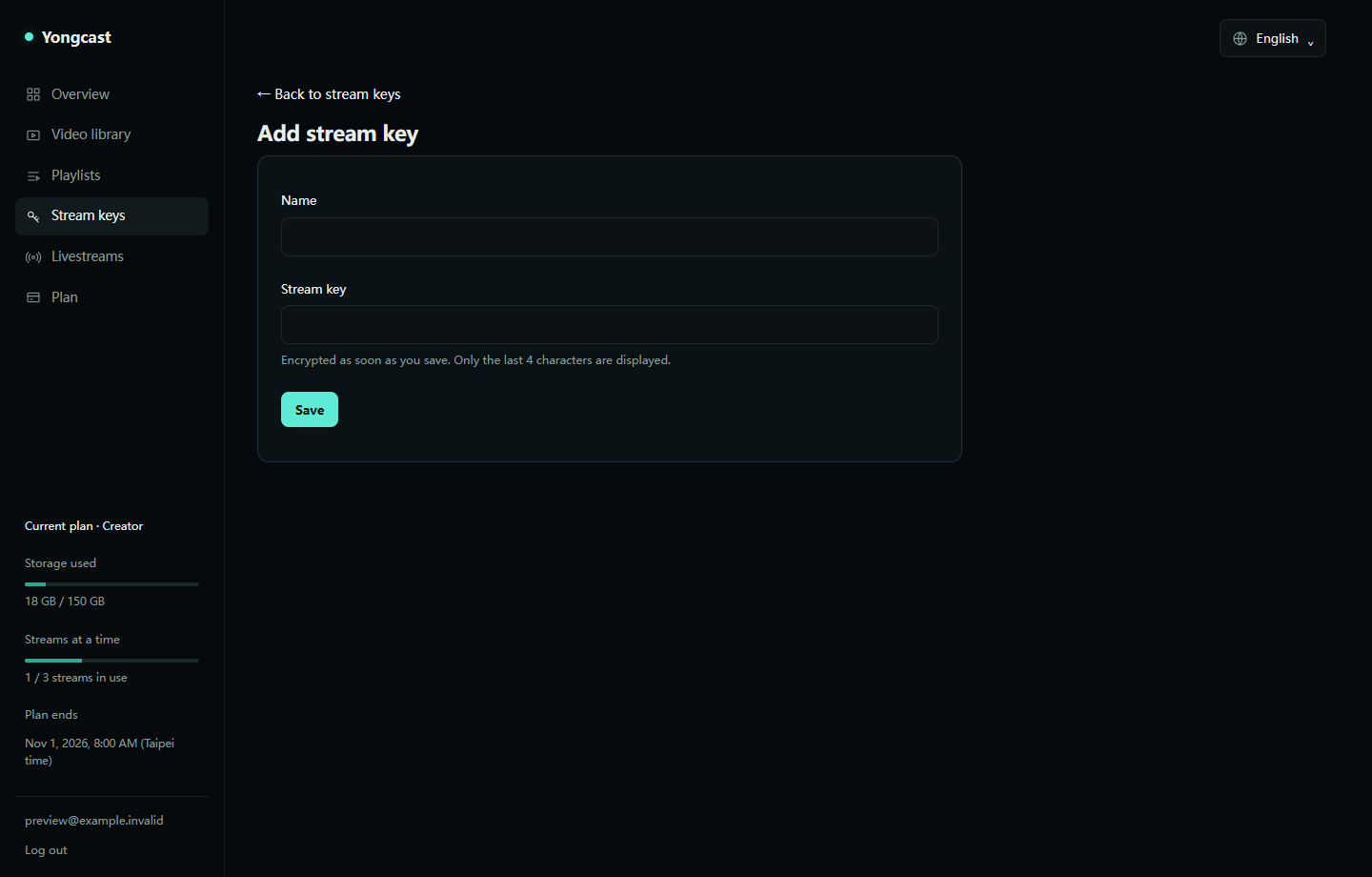
For scheduled events, you also need to wait for the preview in YouTube Live Control Room and select Go live. Check the viewer page. Keys are encrypted as soon as you save them; only the last four characters are displayed. A key grants broadcasting access to your channel. If you reset it on YouTube, replace it here too.
To delete your account, email us from your registered address: contact@yongcast.com