How to run a 24/7 YouTube livestream with prerecorded videos
Let Yongcast stream videos you own or are licensed to use on repeat, without leaving your computer on. Follow these steps from setup to going live. Continuous operation still depends on your plan, server capacity, network conditions and YouTube's rules; uninterrupted streaming is not guaranteed.
1. Prepare your account, channel and original videos
- Create an account, verify your email, then log in. Verify your email to upload videos and go live.
- In YouTube Studio, choose Create → Go live and check that your channel has livestreaming enabled. First-time activation can take up to 24 hours. Repeatedly starting a stream in Yongcast will not shorten YouTube's wait.
- Use only videos you own or have permission to stream, and read the content policy. Videos are not backed up. Keep your originals.
The trial includes 7 days or 24 total streaming hours, whichever comes first, and 5 GB of storage. It doesn't turn into a paid plan automatically. Each file can be up to 20 GB, within your remaining storage. To keep streaming after the trial, see plans and pricing. Cancel anytime and keep access for the period you've paid for.
2. Upload and wait for processing
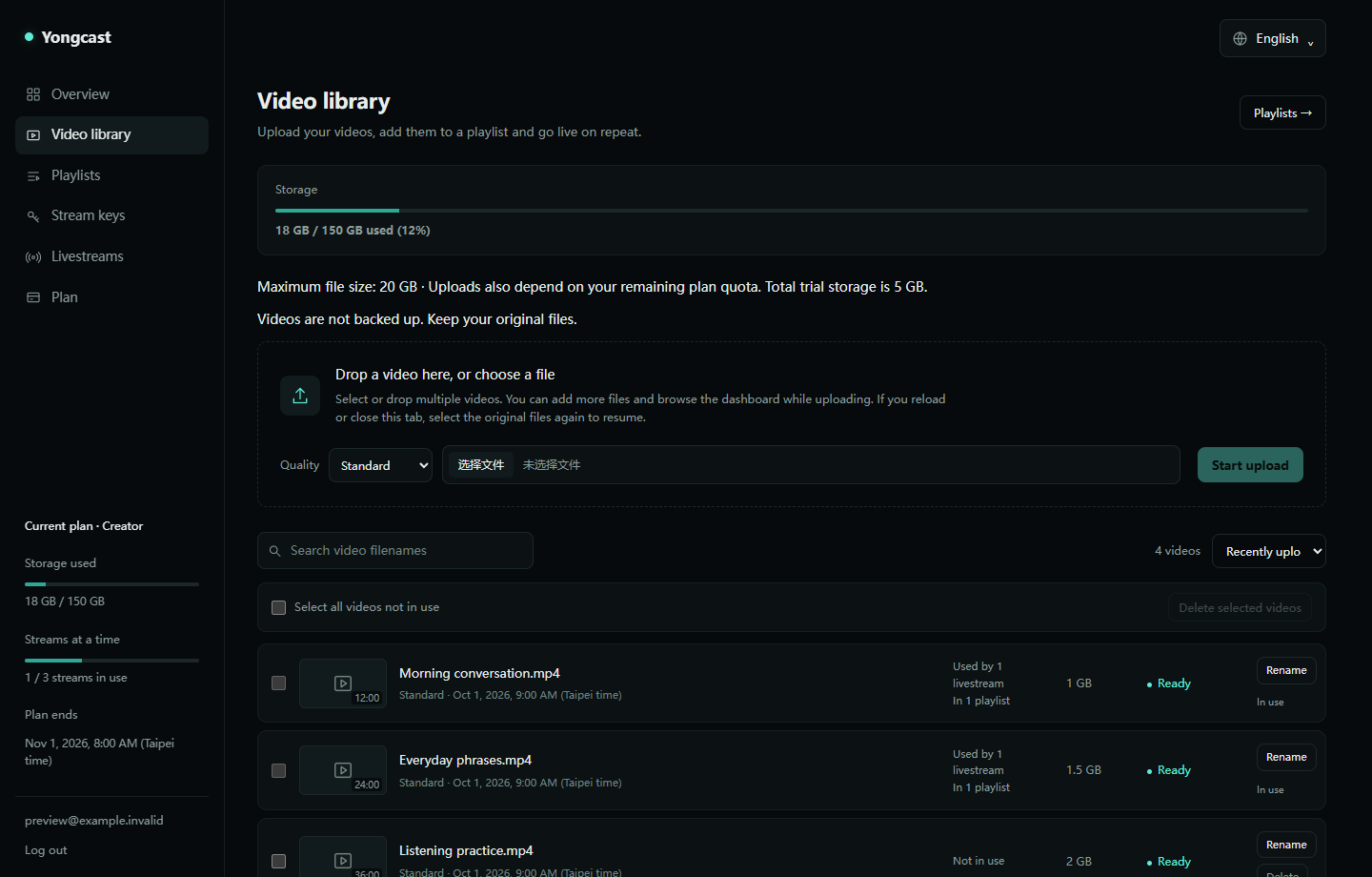
- Open Video library, choose your files and start uploading. After a connection interruption, return to the same browser, select the same file and follow the prompts to resume. Resuming the same upload is not guaranteed in every browser environment.
- Check the status: Queued means waiting for processing, Processing xx% means conversion is underway, and Failed requires you to follow the error message. The percentage is not a promise of remaining time. Long videos can take a while.
- Add videos to a playlist only after processing succeeds and they are ready to play. If storage is full, delete unneeded videos or upgrade your plan. If a failed upload's original retention period has ended, upload it again.
Uploaded doesn't mean ready to play. After successful conversion, the original upload is deleted and only the converted file remains. Failed originals are retained for at most 24 hours from the first failure. See the privacy policy.
3. Create a playlist
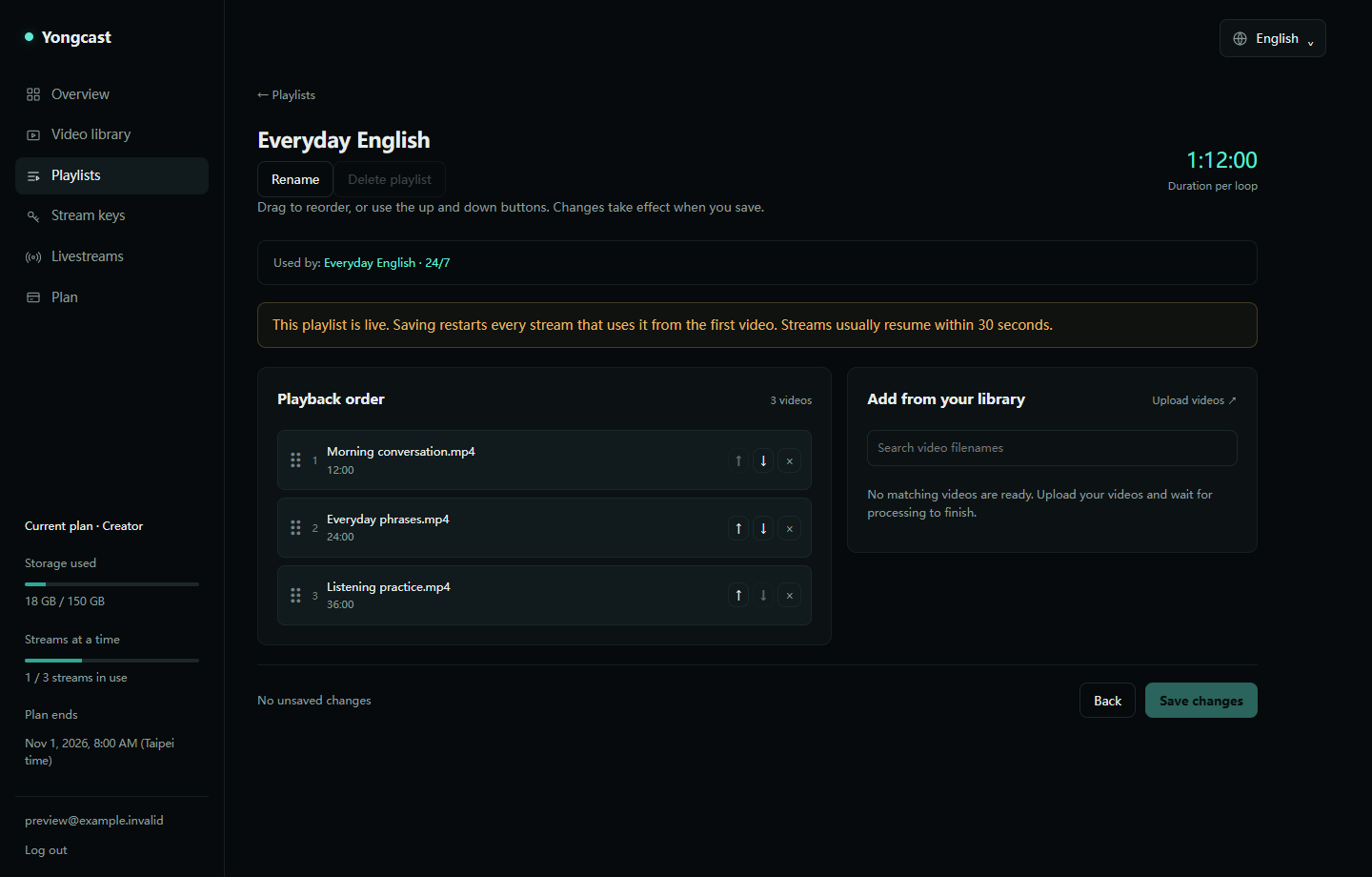
- Open Playlists, create a playlist, add processed videos and check their order.
- Loop in order follows the playlist sequence. Shuffle creates a fixed shuffled sequence when the stream starts and repeats it; it does not shuffle again on every loop.
- A single video can loop too. With multiple videos, check transitions and audio levels before using the playlist in a live broadcast.
Editing a playlist that is currently live briefly reconnects the stream. It usually resumes within about 30 seconds; this is not a seamless transition.
4. Save the key for the correct YouTube livestream
- Open the intended livestream or scheduled event in YouTube Studio. Copy its Stream key, not the Stream URL or viewer link.
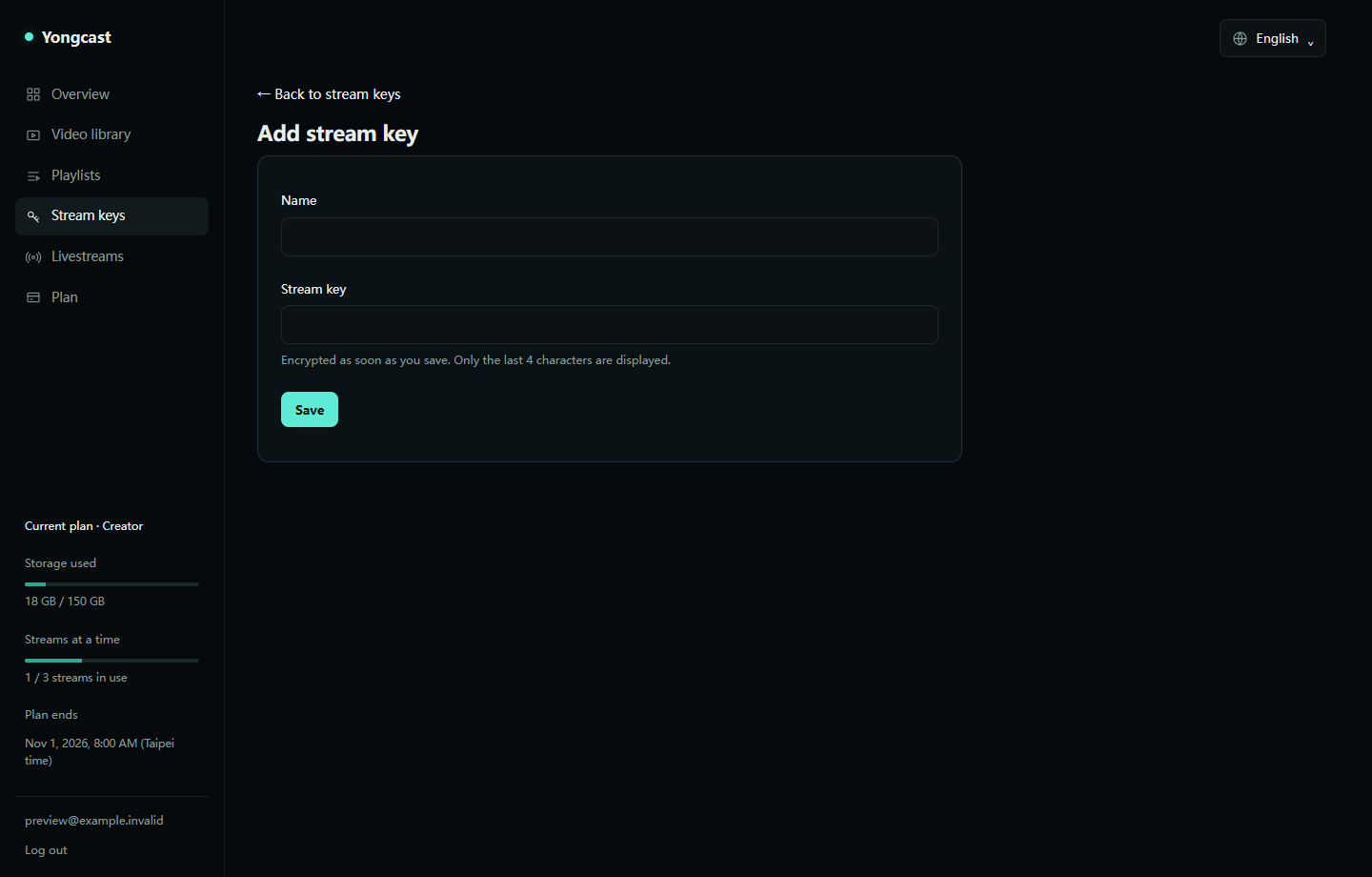
- In Stream keys, give it a recognizable name and save it so you can select the right channel and event later.
- Treat stream keys like passwords. Do not send a full key in chats, screenshots or support emails. See the stream key guide.
5. Go live in Yongcast, then check YouTube
- In Livestreams, create a livestream and select your playlist and stream key. Check the loop or shuffle mode, and whether you are starting immediately or using a schedule.
- Select Go live and wait for the connection. If all streaming slots are in use, retry later as instructed.
- Check the preview and audio in the same event's YouTube Live Control Room. Yongcast sending a stream does not necessarily mean YouTube has made it live for viewers. Scheduled events usually require selecting Go live after the preview appears. If automatic start is enabled, follow that event's settings.
- Open the viewer page for that event and check both picture and sound. Do not rely solely on Yongcast's status. If there is no picture, follow the troubleshooting guide.
6. Keep it running, stop it and handle expiry
Once the viewer page is working, you can turn off your computer. The server continues streaming the playlist. To stop, select Stop in Yongcast and confirm the corresponding event has ended on YouTube. Closing the browser tab does not stop it.
Trial or plan expiry restricts further streaming. Check your account or video page and notification emails for file retention and deletion dates. After renewing, restart streams manually; previous streams do not resume automatically.
If you get stuck, contact us with the step, video status, livestream name and time of the issue, including your time zone. Do not send passwords or verification links.
YouTube steps are based on its official encoder livestreaming guide. The interface may change; follow the current Live Control Room.
Screenshots and illustrations